Employees
BeepClock is the source of truth for employees: add and edit people in the app and they sync to the recorder automatically. Make changes on the device only when you have to — for example to enrol fingerprints.
FAQ
How do I add a new employee?
In the 'Employees' section, click 'Add new employee' and fill in: first name, last name, position (optional), PIN (4 digits, optional — one possible login method), RFID card identifier (card or fob number), and the role on the recorder (User = regular employee, Administrator = full menu access on the device).
How do I enter an RFID card or key fob number for an employee in the app?
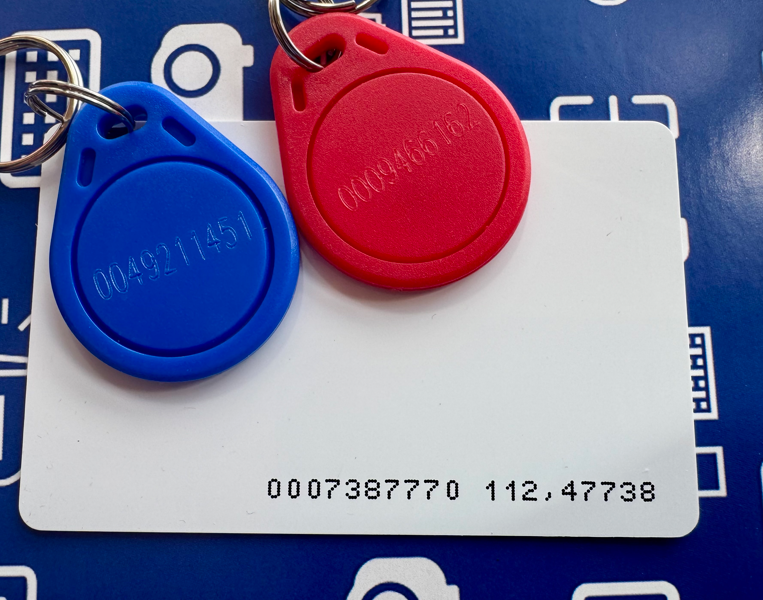
HDWR cards and key fobs have the number printed or embossed on them, so you can copy it into the app (the 'RFID card identifier' field in the new-employee form). Key fob example: 0005281585 — enter into BeepClock without the leading zeros, i.e. 5281585, then save. Card example: 0011618115 191,56859 — enter only the first segment (before the space), without leading zeros, i.e. 11618115, then save.
I added employees in the app but they don't appear on the recorder — how do I sync them?
If employees were created in the BeepClock app they should appear on the recorder automatically. If they don't, run a manual sync: Devices tab → arrow into the specific device → choose either 'Sync employees to device' (when employees were added in the app and you want them on the recorder) or 'Sync employees from device' (when employees were added on the recorder and you want them in the app). The 'Sync to device' flow has an 'Overwrite all employees on device' option — this deletes everyone from the recorder and replaces them with the app's list. WARNING: this also deletes registered fingerprints on the device. The BeepClock app is the source of truth by default; all changes should be made in the app first, with on-device edits reserved for exceptions (e.g. fingerprint enrolment).
I added the first employee, then removed them — when I add the next, the ID starts at 2 not 1. Why?
Once assigned, an internal employee ID is never reused. This protects against ID duplication and the time-accounting errors it would cause.
How does an employee log in with a PIN on the device?
On the recorder keypad, first press '0' to open the ID-entry field (the employee number matches the app). Type the ID and confirm with OK. A PIN-entry field opens; type the PIN and confirm with OK. A successful login is shown on the screen with the employee's details, the login time and a green check mark.
How do I block menu access for unauthorised people?
Give one employee admin rights — only admin-level users can open the menu. On-device: MENU → User (key 1) → Edit (key 3) → pick the employee → OK → set Level to 'Administrator' → OK. Once an admin exists, regular User-level employees cannot open settings. The BeepClock app is the source of truth: setting an admin role in BeepClock pushes those rights to the device automatically.