Attendance and reports
BeepClock records actual clock-in and clock-out events — you don't need to define a work schedule. Breaks, night shifts, missing records and rounding are handled by settings in the app.
FAQ
Does the app calculate employee break time?
Yes — BeepClock calculates breaks automatically from alternating clock-ins. For example: an employee clocks in on arrival, clocks out before a break, clocks back in after the break and clocks out at end of day; the time between the mid-day clock-out and clock-in is recognised and calculated as a break.
Do I need to set a work schedule?
No. The system records actual events, so you don't have to configure a schedule per employee. Note: if an employee forgets to clock out, records may need a manual fix in the app — you can edit individual entries.
Does BeepClock support night-shift time tracking?
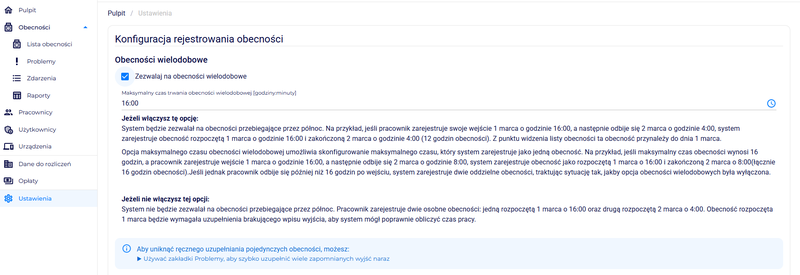
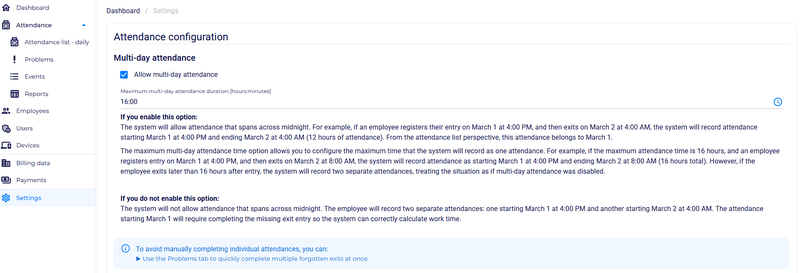
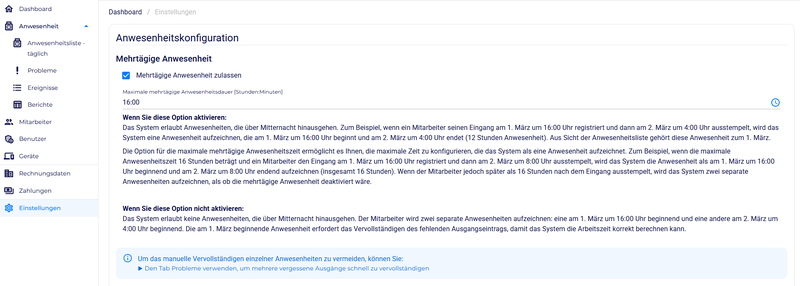
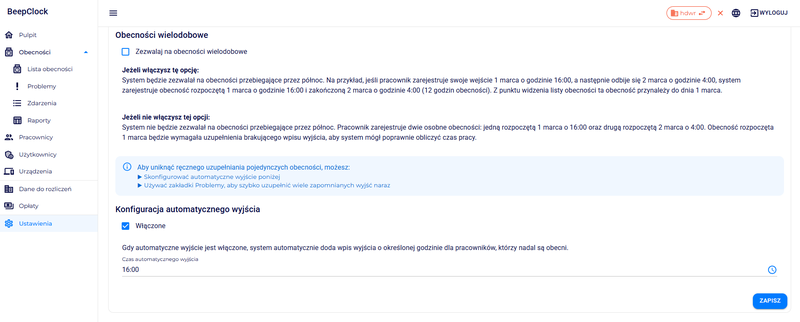
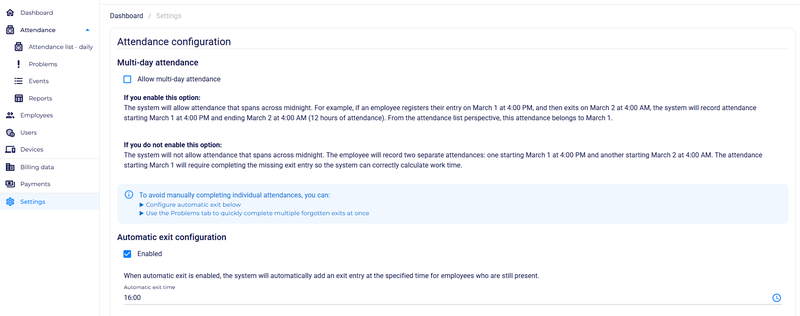
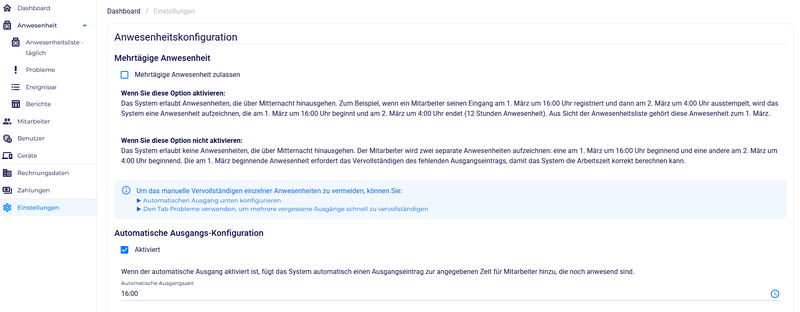
Yes — including shifts crossing midnight. With the 'multi-day attendance' option enabled, the system records the whole shift as one continuous attendance assigned to the day the work started. With the option disabled, a night shift is split into two entries, which may require manual completion of missing data. For night work we recommend enabling the multi-day option.
What happens if an employee forgets to clock out?
If 'automatic clock-out' is enabled, the system fills in the missing clock-out at a configured time, so the workday closes cleanly. If the option is off — or if it was a missing clock-in — the app raises an alert about the missing record. This can lead to inaccurate working-time logs, so we recommend enabling automatic clock-out.
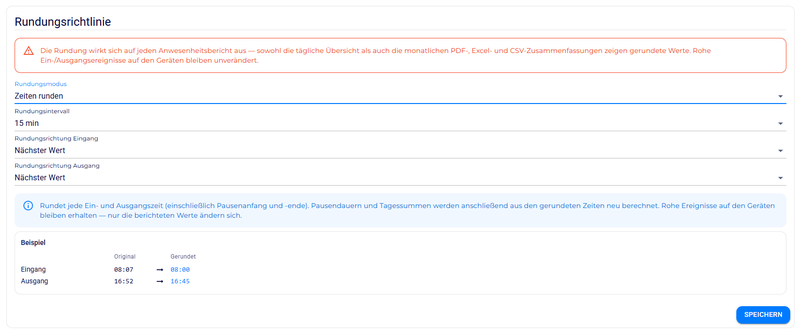
Can the app round actual clock-ins to whole hours and minutes?
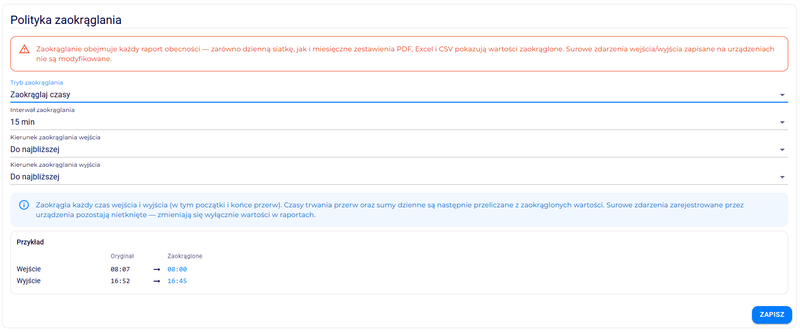
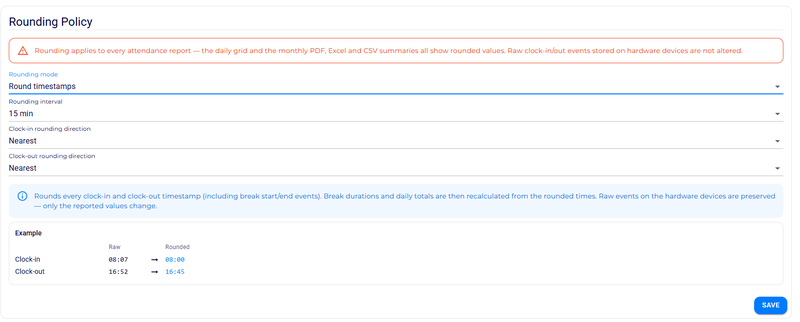
Yes — there is a rounding feature for time, breaks and daily totals. The 'Settings' tab includes an interactive preview that updates as you choose rounding options, which makes it easier to dial in a rounding policy that matches your company's needs.
How do I generate a monthly report for an employee?
In the 'Attendance list' tab click 'Monthly summaries'. Choose the format (Excel or PDF), select the employees and the period (e.g. a full month), then click 'Download'.